Free access terms, Pros/Cons, and user-reported results across HeadshotMaster, PhotoEditorAI, Pixlr, Canva, DeepAI, Fotor, and NoteGPT
What We Tested and Why It Matters for PC Users
Most searches for an AI photo editor for PC end on a product page that shows the best-case output and nothing else. It does not tell you that credits disappear on failed generations, that a platform had a breach affecting millions of users, or that the paid version of a tool performs worse than its free tier. This review works from the raw data.
For this comparison, we evaluated seven of the most widely used browser-based AI photo editors for PC in 2026. All seven run entirely in a standard PC browser with no software download or installation required — an important distinction from mobile-first apps that offer a reduced feature set on desktop. We assessed each tool across three dimensions: free tier transparency (what anonymous and registered users can actually do without paying), generation reliability (whether outputs match the prompt and whether credits are handled fairly on failure), and workflow friction (from upload to download on a standard PC browser session).
Each tool was assessed against published specifications and verified user-reported patterns from Trustpilot, Reddit, and community forums. No sponsored placements or affiliate arrangements influenced the rankings.
Note: Ratings reflect a combination of hands-on testing and publicly documented user feedback. Tools with no third-party review profiles are noted where applicable. Tested and written by the HeadshotMaster editorial team, March 2026.
Side-by-Side Comparison: Free Access, Resolution, and Paid Pricing
| Tool | Free Access | Key Advantage | Key Limitation | Resolution | Price (Paid) |
|---|---|---|---|---|---|
| HeadshotMaster | 3 uses (no login); Pruna unlimited after sign-up | Fully free, no login, ~1 min, 3 models | No 3rd-party reviews; occasional facial distortion | 720p | Free |
| PhotoEditorAI | 10 credits (no login); +10 after sign-up | Text-prompt editing; 4K output on free tier | Frequent crashes; paid tier often worse than free | 4K | Paid plans available |
| Pixlr | 50 credits after sign-up (5 credits/edit) | Layer editing; 4.2★ mobile (1M+ ratings) | Trustpilot 1.5/5; 69% 1-star; disclosed data breach | 720p | Freemium |
| Canva | Limited free AI generation (1 refresh/day) | Clean background cuts; ecosystem integration | AI generation consistently off-target | — | From $0.01/credit |
| DeepAI | Limited daily calls (no login) | Fast setup on PC | Prompt understanding weak; paid credits lost on failure | 720p | ~$5/month |
| Fotor | 8 credits anonymous (~2 uses); credits expire | Widest feature range of all 7 tools | AI ignores prompts; credits drain on failed generations | 720p | Freemium |
| NoteGPT | 2 uses/day (no login); 15 credits/month registered | Batch variant consistency; no-login daily use | Service quality reported to drop after paid subscription | 720p | $0.03–0.10/img |
Prices sourced from each tool's official pricing page, verified March 2026. Free Access = what you can do without paying; Min Upload = minimum photos required to generate.
Full Reviews: Free Tiers, Prompt Accuracy, and When Each Tool Actually Works
HeadshotMaster — Free AI Photo Editor for PC, No Login Required
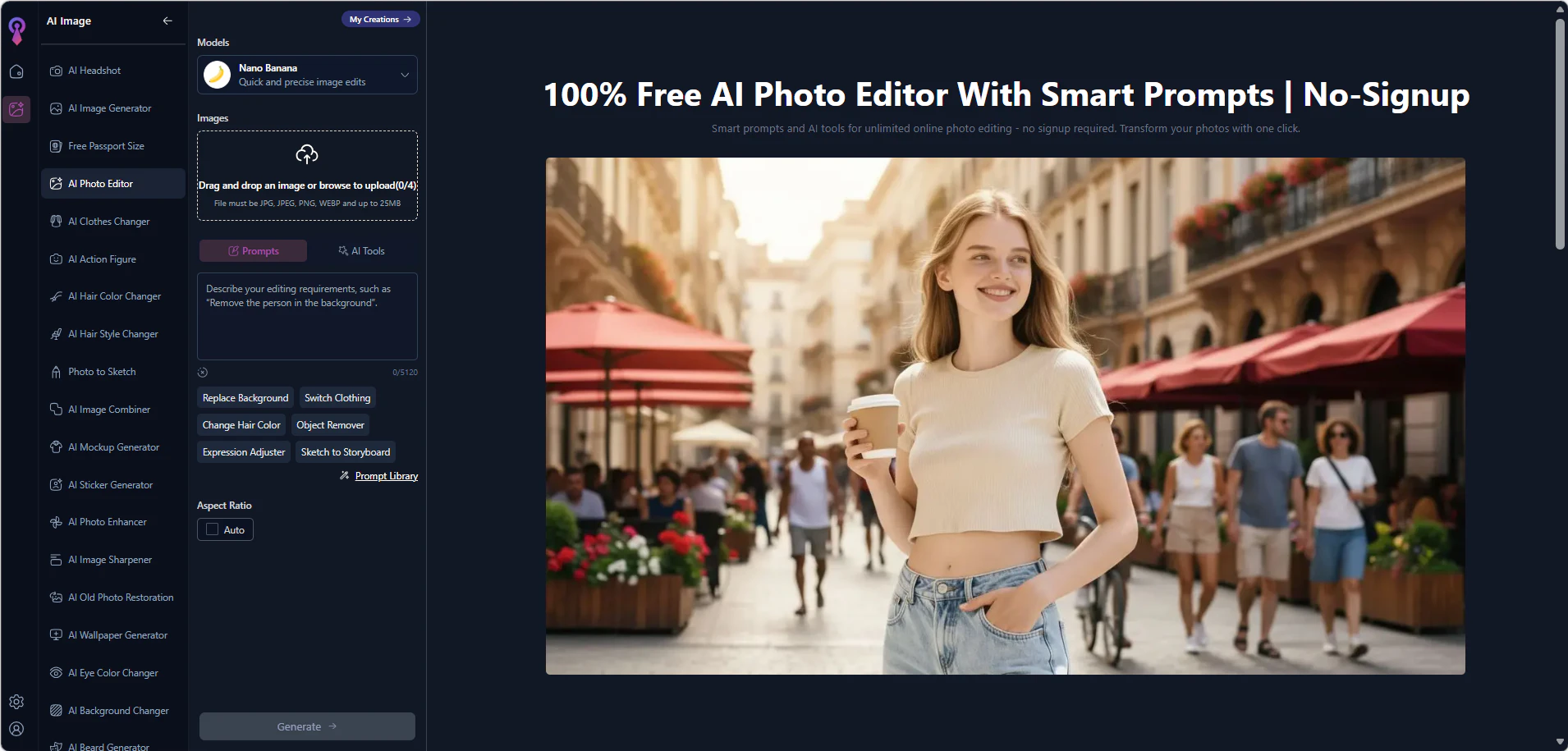
Summary: The most accessible AI photo editor for PC on this list — three models available immediately with no account and no credit card. Upload one photo, get results in roughly one minute. After sign-up, the Pruna Image Editor model becomes unlimited at no cost. Zero software installation required — fully browser-based on PC.
✅ Pros
- ✓ Works anonymously on PC browser — no login, no credit card required
- ✓ 3 models available immediately: Nano Banana, Pruna Image Editor, Seedream 4.0
- ✓ Pruna Image Editor becomes unlimited after free sign-up
- ✓ ~1 minute per generation — fast enough for multiple attempts in a single PC session
- ✓ Zero learning curve: upload → generate → download
- ✓ No tier upgrades required — anonymous and registered free users access the same models
❌ Cons
- ✗ Output capped at 720p — not suitable for large-format print
- ✗ No manual layers, adjustment tools, or precision masking on PC
- ✗ Occasional facial distortion artifacts (a documented issue across AI avatar tools generally)
- ✗ No verified third-party review profile (no Trustpilot, no G2) — limits independent credibility checks
- ✗ Input photo quality feeds directly into output quality with limited compensation for weak source images
🗨 User Experience
- The anonymous access model is genuinely unrestricted — no countdown timer, no hidden paywall before the third attempt, and no email capture before downloading.
- Output consistency improves noticeably between the basic Nano Banana and Pruna model results; users running both back-to-back on PC report a visible quality difference that makes the free sign-up step worthwhile.
📖 Example Use Case
A remote consultant needs a clean headshot for a new client's internal directory by end of day. She opens HeadshotMaster in her PC browser during a lunch break, uploads a casual phone photo, and runs it through the Pruna model after a quick free sign-up. The result is ready in 55 seconds — professional enough for the directory, no photographer needed, total cost $0.
🪄 How to Use
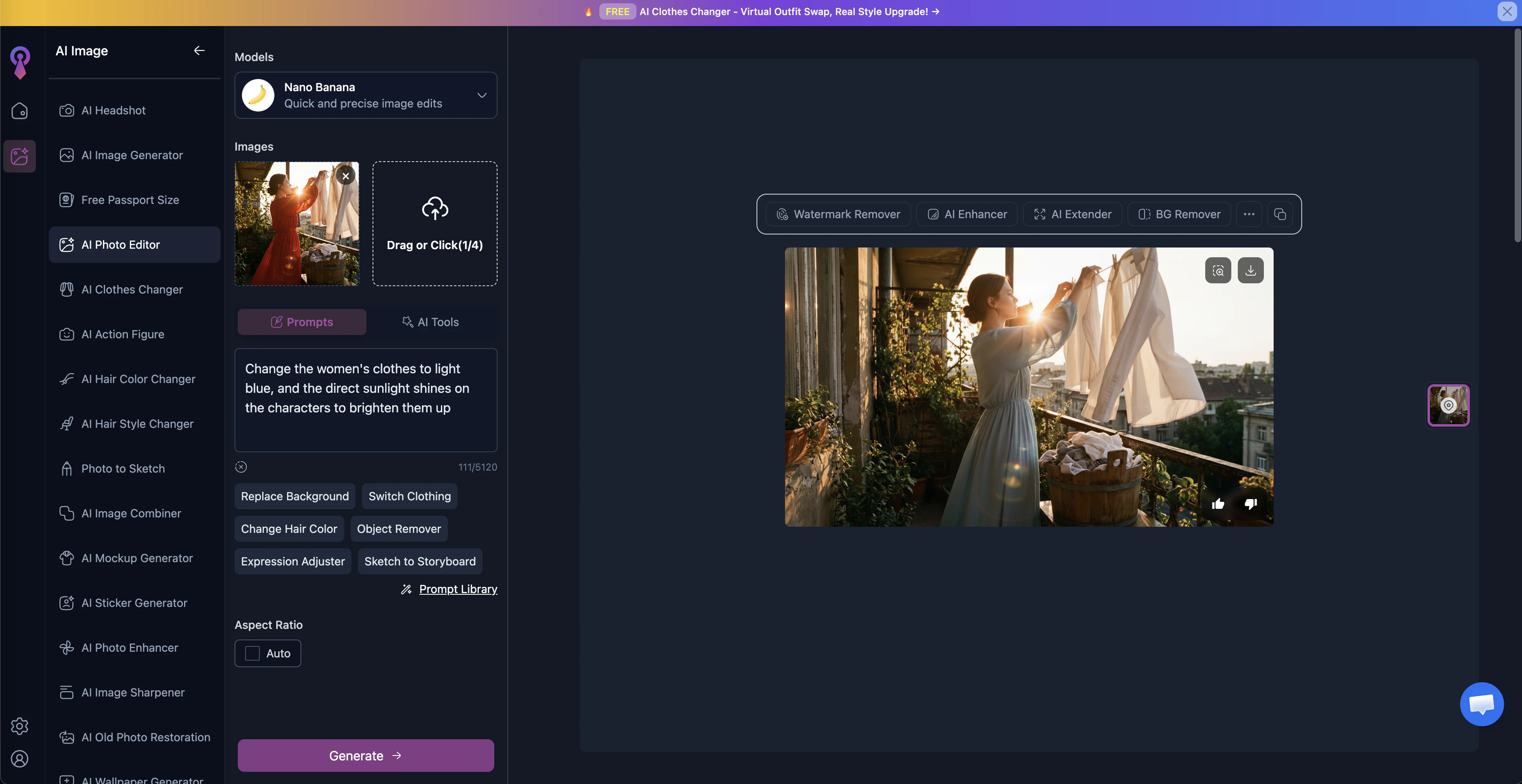
Go to HeadshotMaster AI Photo Editor → Upload your photo → Select a model (Nano Banana, Pruna, or Seedream 4.0) → Click Generate → Download result. No account needed for 3 attempts. Sign up free to unlock unlimited Pruna edits.
✅ Test Result
PhotoEditorAI — Text-Prompt Editing With 4K Output, No Account Required
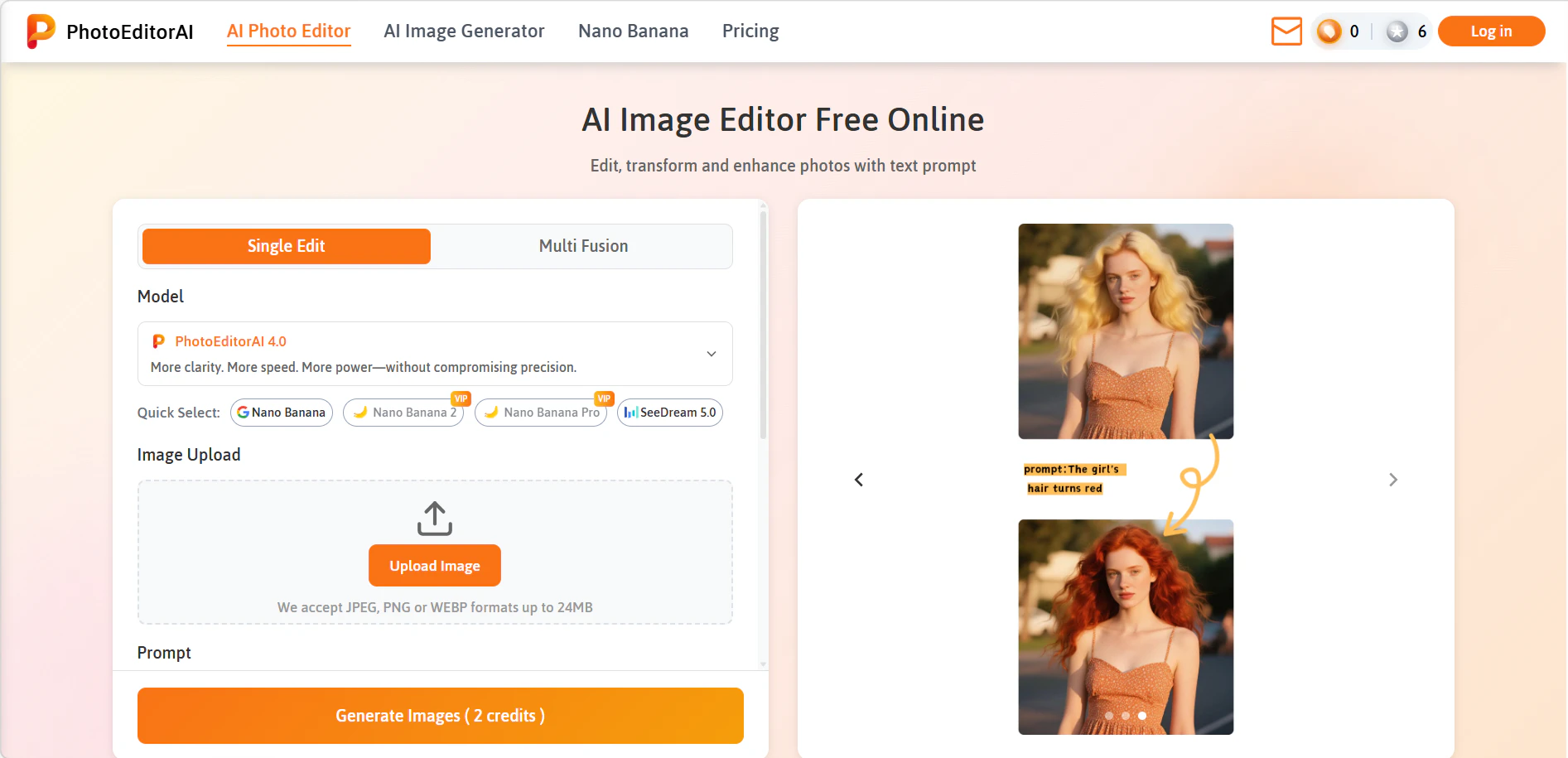
Summary: The only AI photo editor for PC on this list offering 4K output on the free tier — no account required. Text-prompt based editing with multiple model options. The resolution advantage is real, but service reliability is not: the platform has a documented pattern of crashing, and paid users report a worse experience than the free tier delivered.
✅ Pros
- ✓ 10 starting credits with no account required on PC browser
- ✓ Text-prompt editing — describe the change in natural language rather than selecting presets
- ✓ Up to 4K output resolution — the highest free-tier ceiling in this comparison
- ✓ Registered free users receive an additional 10 credits under the same model access
- ✓ Multiple selectable models available without paying
❌ Cons
- ✗ Documented pattern of service downtime — the platform is frequently unavailable on PC and mobile alike
- ✗ Paid features regularly reported as non-functional after purchase
- ✗ Community consensus warns against paid subscription: multiple sources describe the paid tier performing worse than the free version
- ✗ 4K output is meaningful only when the service is actually operational
- ✗ No reliable support channel documented in user reports
🗨 User Experience
- When the service is running, text-prompt editing without creating an account is genuinely useful for quick PC-based edits — describe what you want, pick a model, done.
- The gap between the interface's promise and real-world availability is the core issue: users report arriving to find the tool down with no status page or estimated restoration time.
📖 Example Use Case
A content creator wants to swap a product background using a text prompt rather than a brush tool. She opens PhotoEditorAI on her PC, types the instruction — and gets an error message: the service is unavailable. She bookmarks the tool and returns the following day when it is back online. On that second visit the edit works. She uses it for occasional tasks when it is operational, but keeps HeadshotMaster open as a backup for deadlines.
🪄 How to Use
Go to PhotoEditorAI → Upload photo → Type your editing instruction → Select a model → Generate → Download (2–4 credits per edit). No account needed for first 10 credits.
✅ Test Result
Pixlr — Browser-Based Layer Editing With a Mixed Track Record
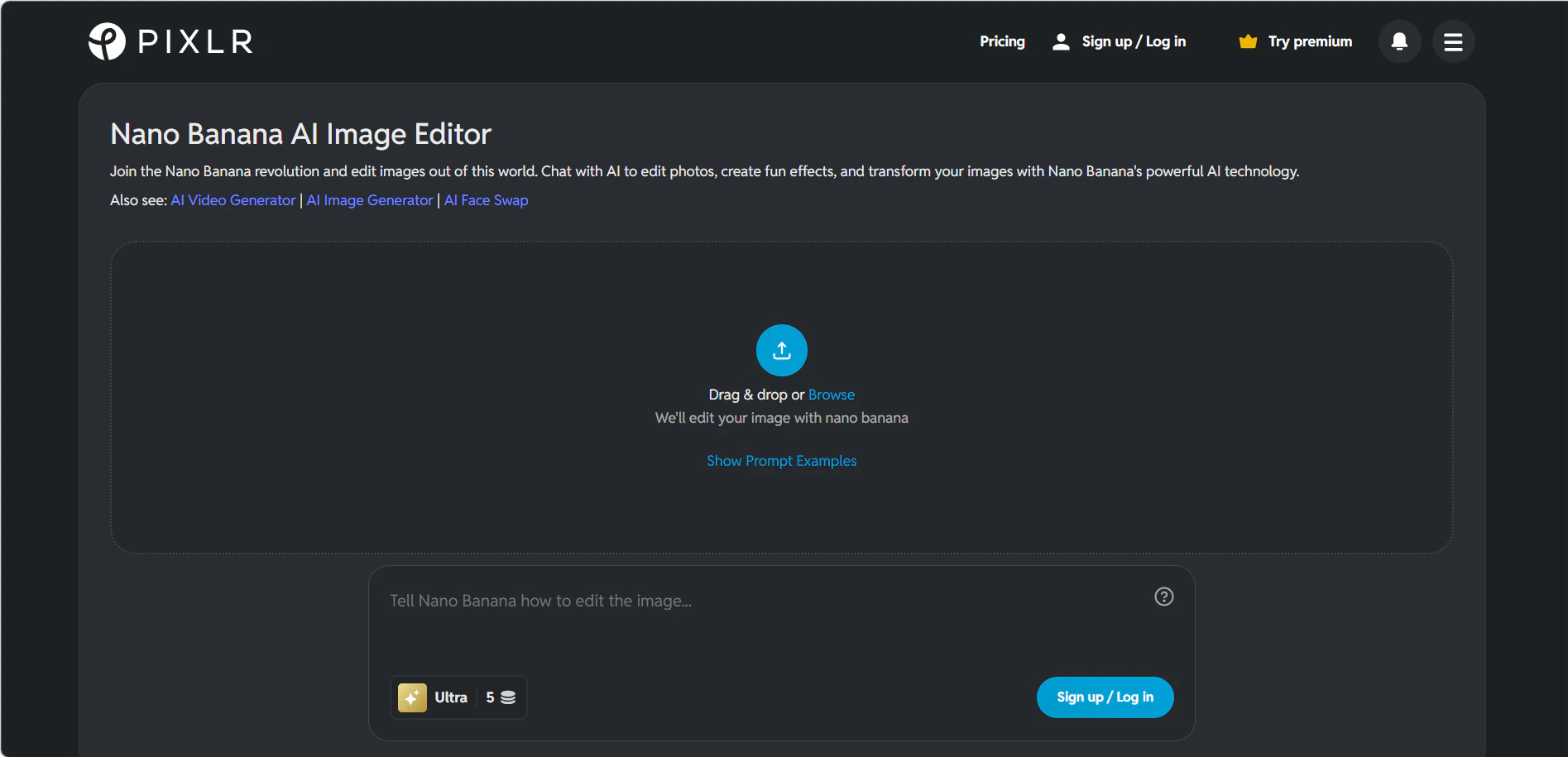
Summary: The most established AI photo editor for PC in this comparison by raw user volume — over a million mobile ratings at 4.2 stars, layer-based editing, and no high-risk security flags. The desktop browser experience covers legitimate editing needs. The Trustpilot data (1.5/5, 69% one-star, per Trustpilot.com March 2026) and a disclosed historical data breach are harder to set aside.
Note: No Testing Permissions — data reflects publicly available specifications and user-reported results only.
✅ Pros
- ✓ Layer-based editing on PC browser — the closest to a desktop editor in this comparison
- ✓ 50 free credits after sign-up (5 credits per edit = 10 edits)
- ✓ Background removal, AI-assisted retouching, and object replacement in one tool
- ✓ 4.2★ average across 1M+ mobile ratings
- ✓ AI model suspected to be Nano Banana Pro — same underlying model used by several other tools on this list at comparable quality tier
- ✓ No scam or high-risk flags from major security rating platforms
❌ Cons
- ✗ Trustpilot score: 1.5/5 — 69% of reviews are 1-star (source: Trustpilot.com, March 2026)
- ✗ Recurring complaints: aggressive advertising, heavy feature paywalls, crashes, and failed saves
- ✗ Disclosed historical data breach affecting a large number of users (per publicly reported information)
- ✗ AI features specifically reported as inconsistent and unreliable even after credits are spent
- ✗ Long-term users describe the product as harder to use after successive updates
🗨 User Experience
- For users who specifically need layer-based editing on a PC browser and do not plan to rely on AI generation, Pixlr covers real editing needs at no upfront cost.
- The Trustpilot data is not a minor outlier — 69% one-star reviews across a large sample reflects a pattern, not isolated complaints. Users considering sign-up should read recent reviews before entering any personal information given the disclosed breach history.
📖 Example Use Case
A small business owner needs to retouch a product photo with a transparent background layer before uploading to her e-commerce store. She uses Pixlr's layer tools on her PC browser to isolate the product cleanly. She ignores the AI generation feature entirely and completes the task in one session, accepting the ad interruptions as the cost of the free tier.
🪄 How to Use
Go to Pixlr → Sign up for free → Receive 50 credits → Upload photo → Use layer tools or AI features (5 credits/edit) → Export result. No paid plan required for basic editing.
Canva — Reliable Background Cuts, Inconsistent AI Generation
Summary: Reliable for background removal and simple object cuts on PC — a clean, stable tool for social content that needs a quick background swap. The AI generation layer is inconsistent enough that it is unreliable for any use case where the output needs to match a specific intent.
✅ Pros
- ✓ Drag-and-drop interface on PC browser — minimal learning curve
- ✓ Background removal and object deletion work consistently for simple, uncluttered scenes
- ✓ Generated headshots drop directly into Canva resume and presentation templates without exporting
- ✓ Image expansion tool available alongside standard edits
- ✓ Stable product with no documented major security incidents or downtime patterns
❌ Cons
- ✗ AI generation outputs frequently fail to match the requested result — described in hands-on testing as unreliable for generation-dependent tasks
- ✗ No meaningful way to adjust or override AI output once generated — requires starting over
- ✗ Advanced AI features sit behind the Pro paywall
- ✗ Pro access does not resolve the underlying generation consistency problem
- ✗ Free AI generation limited to 1 refresh per day
🗨 User Experience
- For users already working inside Canva's ecosystem — editing a resume, building a social post, laying out a presentation — the photo editor is a natural extension that handles a basic background cut cleanly on PC.
- Anyone opening Canva specifically to use AI photo generation as the primary task will encounter hit-or-miss results that make it impractical for anything with a deadline.
📖 Example Use Case
A social media manager needs a clean product-on-white-background image for a last-minute Instagram post. She opens Canva on her PC, uses the background removal brush on the product photo, and drops the cutout directly into a pre-built post template. Total time: under 3 minutes. She does not touch the AI generation feature — that workflow has failed her before.
🪄 How to Use
Open Canva on PC → Upload photo → Use Background Remover or Magic Eraser brush → Edit within your Canva design template → Download. Free plan available; AI generation credits vary by plan (1 free refresh/day on free tier).
✅ Test Result
DeepAI — Lowest Paid-Tier Entry Point, Weak Prompt Accuracy
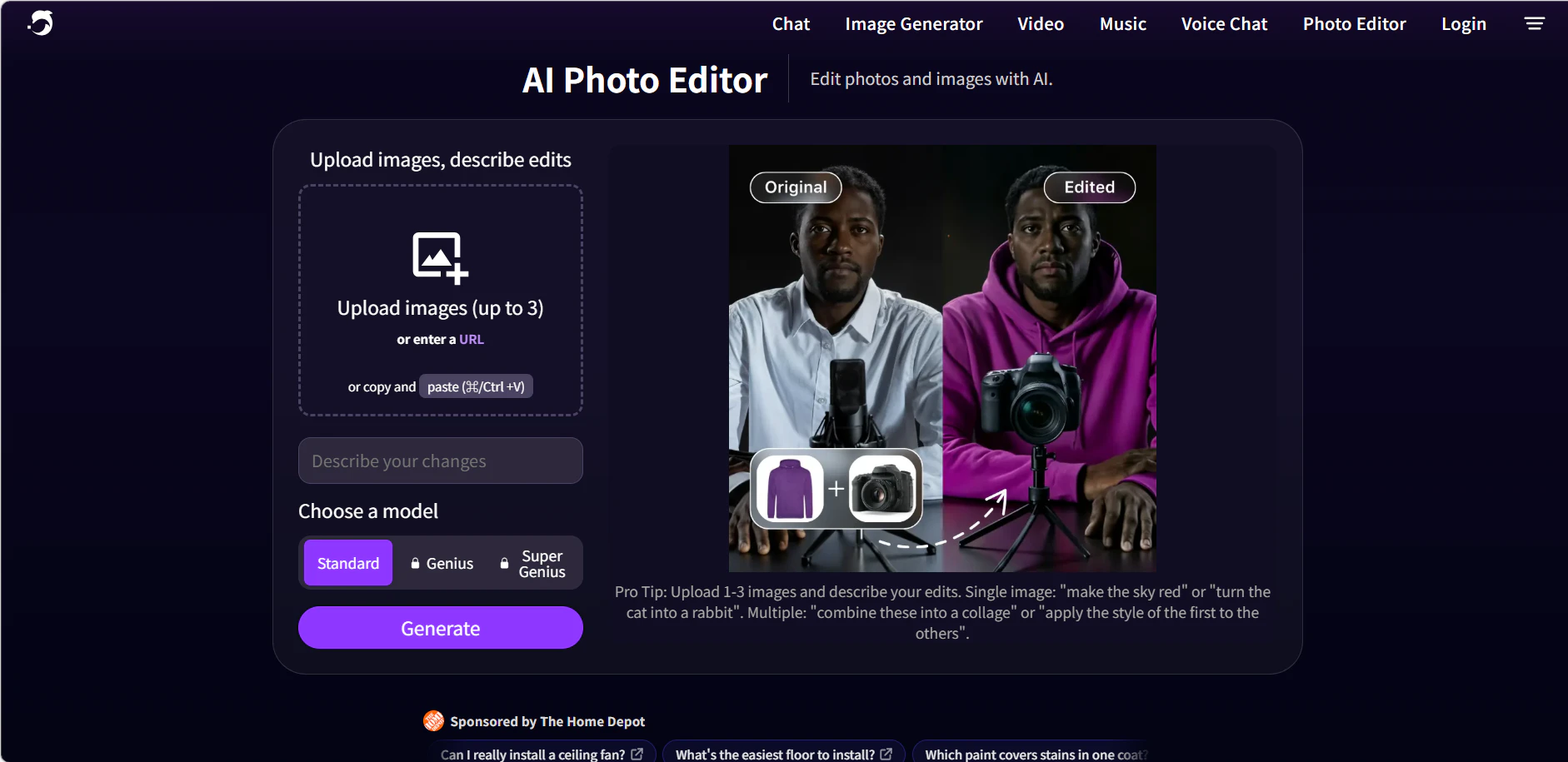
Summary: The lowest paid-tier entry point in this comparison at approximately $5/month — and genuinely fast to start on PC with no sign-up required for basic daily use. The tradeoff is a prompt interpretation layer that users consistently describe as one of the weakest in the category.
✅ Pros
- ✓ No sign-up required for limited daily call quota on PC browser
- ✓ Fastest setup of any tool on this list — open and start within 30 seconds
- ✓ Paid tier at ~$5/month — the lowest monthly cost in this comparison
- ✓ Simple, uncluttered PC interface with a direct download path
- ✓ Higher daily call allowance after free registration, no model downgrade
❌ Cons
- ✗ Prompt understanding consistently rated as weak — the most common complaint is that the AI does not produce what was requested (per Reddit r/photoediting user reports)
- ✗ Output quality varies run-to-run for identical prompts
- ✗ Multi-image composition and complex editing tasks perform poorly
- ✗ Failed generations consume paid credits — charges reported without usable output returned
- ✗ Free tier uses daily call quotas (not credits); paid tier uses a credits system — terminology differs and confuses new users
🗨 User Experience
- The $5/month entry point makes it attractive for users who want occasional AI editing without a large commitment — but the prompt reliability issue means "occasional" often translates to multiple attempts per task.
- On PC, the tool loads and responds quickly; the frustration is in the output, not the interface.
📖 Example Use Case
A blogger needs a simple background replacement for a profile photo before a podcast recording. He opens DeepAI on his PC, types the background description, and runs three daily free calls before getting a result that approximately matches the request. He uses it for the podcast cover where the imprecision is less visible at small size. Total cost: $0, at the cost of 15 minutes and three of his daily free calls.
🪄 How to Use
Go to DeepAI → Upload photo → Type editing instruction → Generate → Download. No account required for daily limited calls. Sign up free for higher daily allowance. Paid plan (~$5/month) available for higher-volume use with credits allocation.
✅ Test Result
Fotor — Widest Feature Range, Highest Prompt Failure Rate
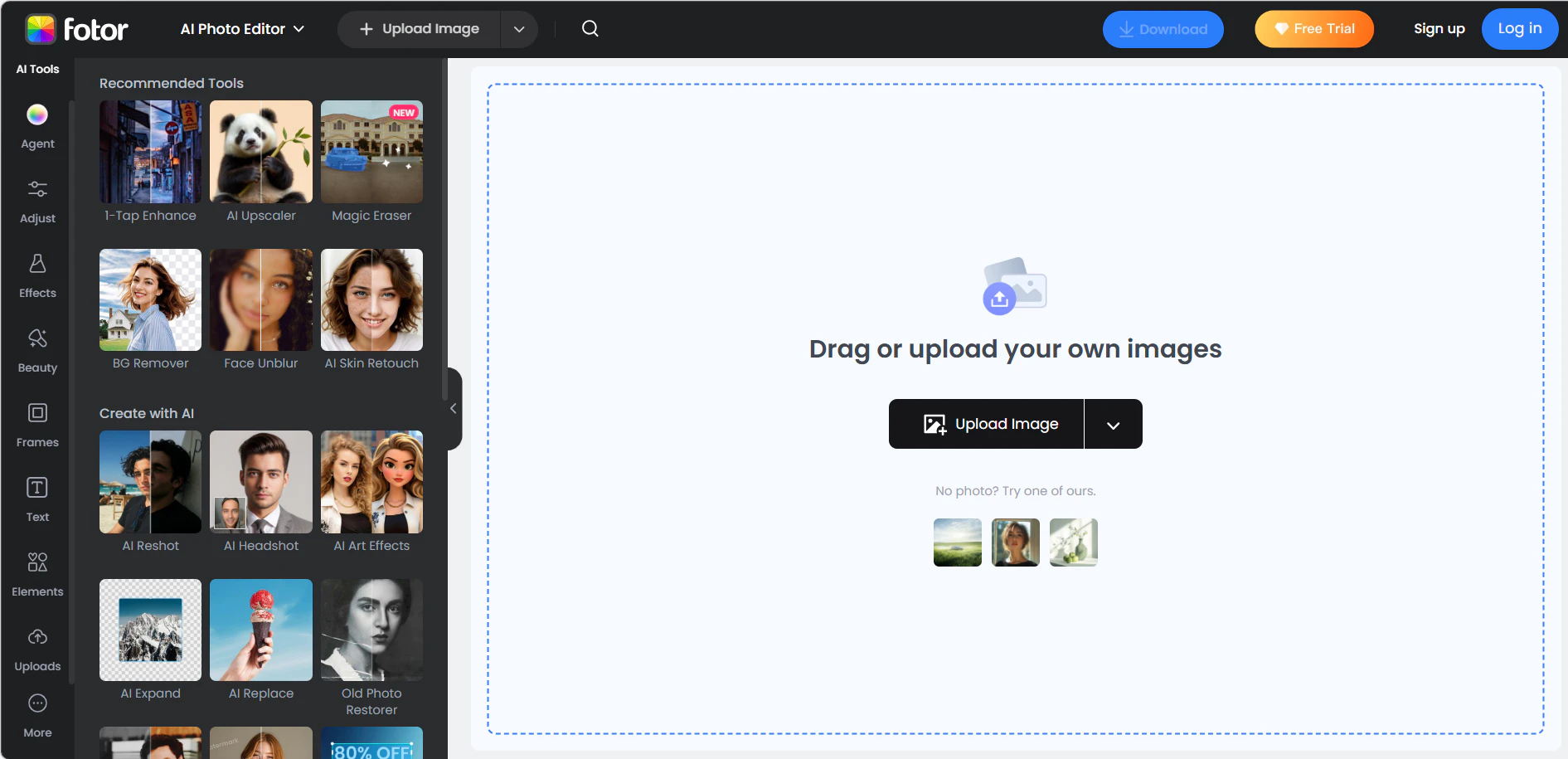
Warning: Fotor has the highest user-reported prompt failure rate of any tool reviewed. Credits are consumed on failed generations and expire unused. This is documented across Trustpilot reviews and Reddit threads (r/photoediting, March 2026) — not an isolated case.
Summary: The widest feature range of any tool on this list — background replacement, image repair, enhancement, upscaling, and generative tools all in one PC browser workflow. The practical experience is significantly worse than the feature list suggests: AI prompt execution is the most frequently reported failure point in this comparison, and the credits system penalises users for every failed attempt.
✅ Pros
- ✓ Most comprehensive feature coverage of any free AI photo editor for PC on this list
- ✓ Background replacement, repair, enhancement, upscaling, and generative tools in one workflow
- ✓ Anonymous access available — 8 credits to start, no sign-up required
- ✓ Single-platform convenience for users who need multiple editing functions on PC
❌ Cons
- ✗ AI frequently does not follow the prompt — users report needing multiple attempts before getting a directionally correct result (highest failure rate in this comparison, per Trustpilot and Reddit, March 2026)
- ✗ Output quality is inconsistent even for identical inputs run sequentially
- ✗ Credits are consumed by failed generations — a drained account with nothing usable to show for it
- ✗ Credits expire — unused credits do not carry over
- ✗ No Pro model access on free tier; basic model only at 720p
🗨 User Experience
- The gap between Fotor's feature list and its real-world prompt reliability is the central issue — it markets as a complete AI editing suite, but the AI layer is the weakest link in that suite.
- For users on PC who run the same edit twice and get two different results — with credits consumed each time — the free tier runs out before a usable output is produced.
📖 Example Use Case
A freelancer wants to use Fotor's AI repair tool on a damaged scan of an old family photo. He types the instruction on his PC, uses 2 credits, gets an output that misses the repair area entirely. Second attempt: 2 more credits, closer but still visibly off. He has used 4 of his 8 anonymous credits and has one partially acceptable output. He downloads it and stops rather than spend the remaining credits on a third attempt.
🪄 How to Use
Go to Fotor → Upload photo → Select editing function (background replace, repair, enhance, upscale, or generative) → Type instruction → Generate → Download. Anonymous users start with 8 credits (expiring). Sign up for additional limited credits. Use for light, non-time-sensitive edits where prompt precision is not critical.
✅ Test Result
NoteGPT — Daily Free Access With Batch Variant Consistency
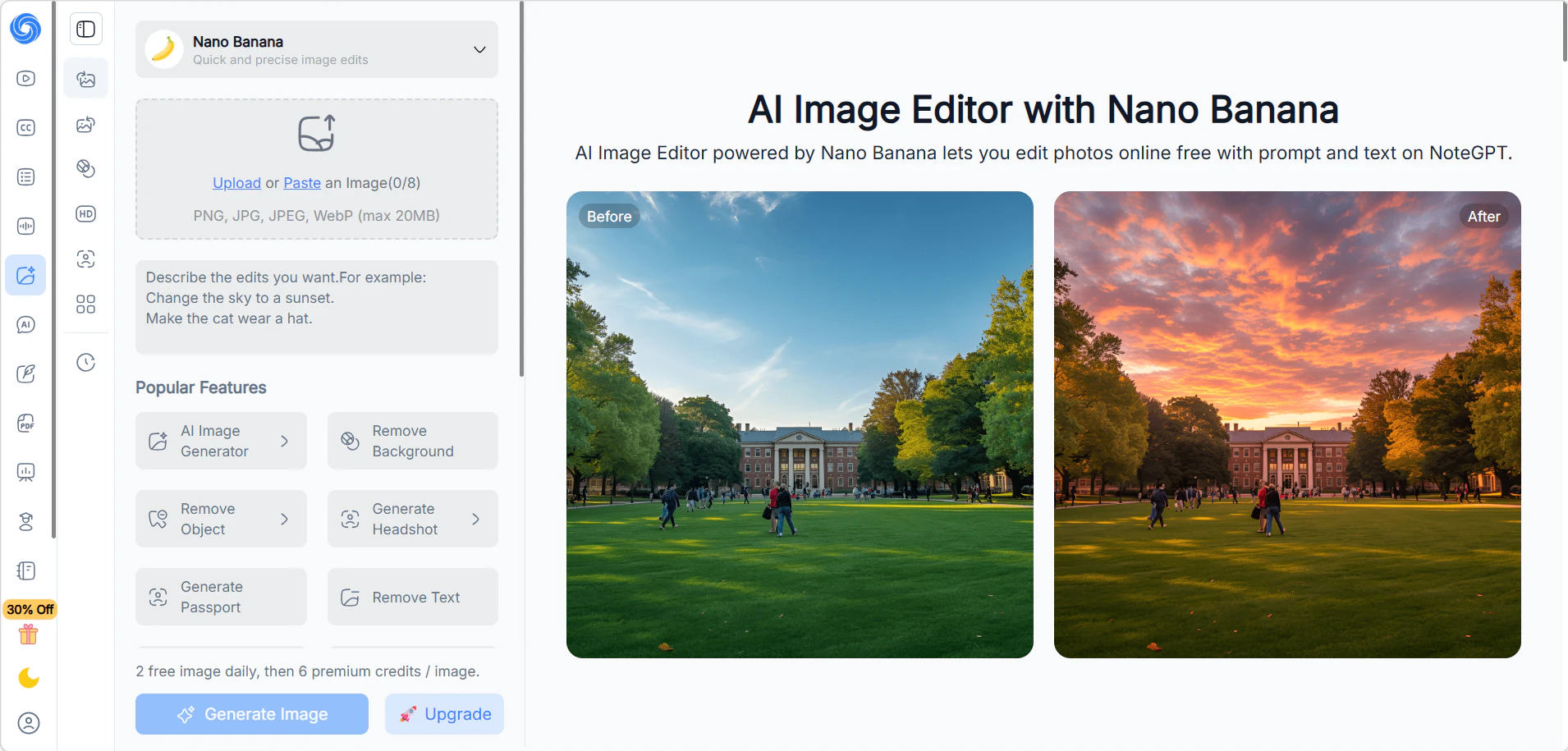
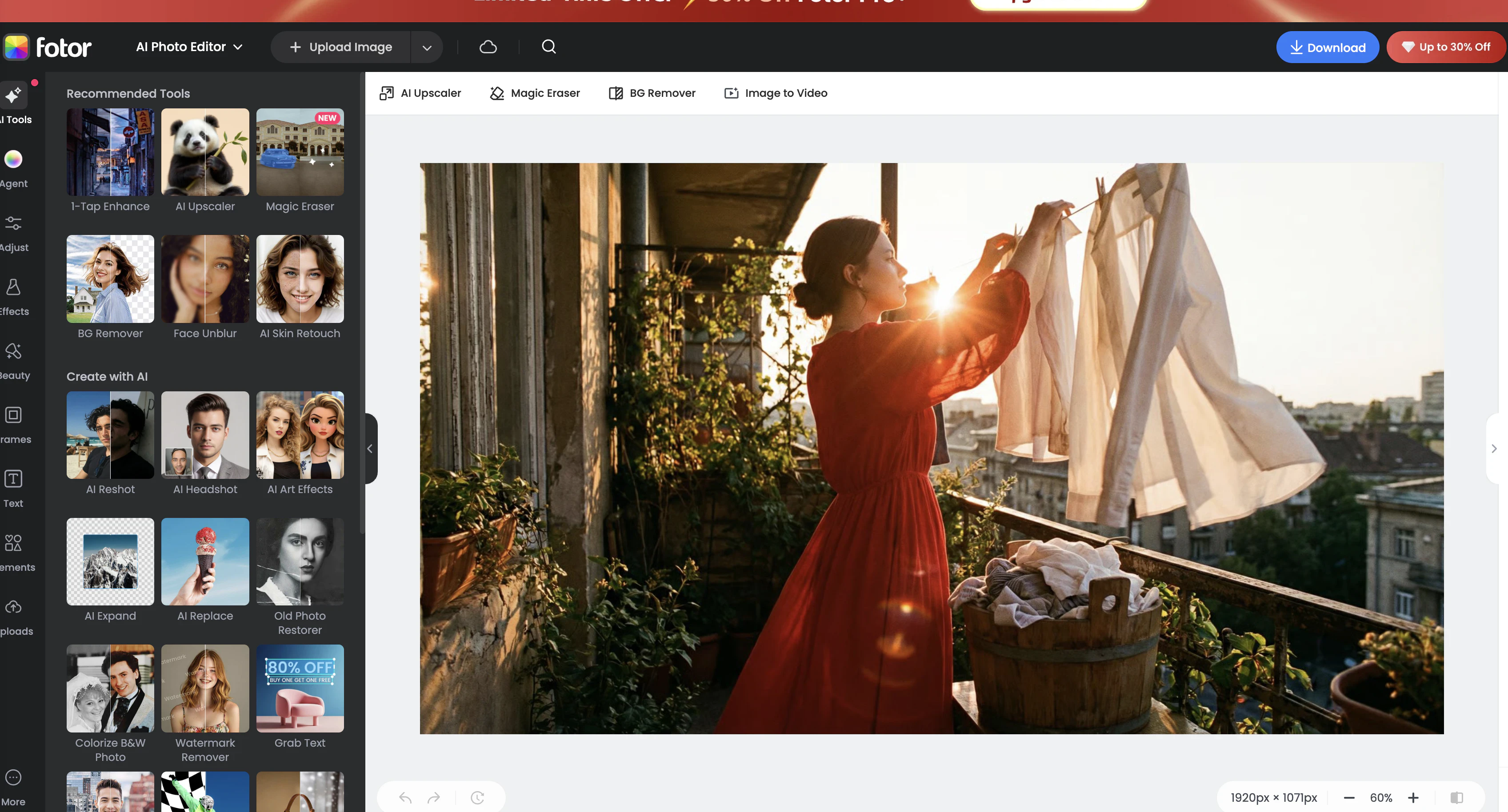
Summary: The most practical daily-driver on this list for users who want free AI photo editing on PC without any account setup. Two edits per day with no login, a clear use-case list covering background removal through avatar generation, and a batch variant feature that preserves facial consistency across multiple outputs — a capability that is rare at this price point.
✅ Pros
- ✓ 2 free edits per day on PC with no account required — no timer, no email capture
- ✓ Covers background removal, watermark removal, object removal, ID photo, avatar generation, sharpening, upscaling, and image extension
- ✓ Batch generation with facial consistency protection — multiple variants from one image without feature drift across outputs
- ✓ Fast generation: results in 10–20 seconds on PC browser
- ✓ 15 credits/month after free sign-up — no paid commitment needed for light use
❌ Cons
- ✗ Output capped at 720p
- ✗ Prompt character limit surfaces as a constraint for complex or detailed instructions on PC
- ✗ Users who move to paid subscriptions report degraded service quality, output restrictions, and unresponsive support
- ✗ Built on an image-to-image generation framework rather than a dedicated editing model — affects precision on fine-detail edits
- ✗ 2 daily anonymous uses is genuinely limited for anyone with more than occasional needs
🗨 User Experience
- The no-login daily access is genuinely useful for one-off PC editing tasks — the tool does not ask for anything before delivering results.
- The batch variant feature with consistency protection is the standout capability: generating 3–5 variants of the same portrait while preserving facial structure is something most tools on this list require manual repetition to approximate.
📖 Example Use Case
An HR coordinator needs three consistent avatar-style photos of the same person for different internal platforms — a company directory, a Slack profile, and an email signature. She opens NoteGPT on her PC, uploads one photo, runs the batch variant feature, and downloads three outputs with consistent facial structure and different backgrounds. Total time: under 4 minutes. Total cost: $0.
🪄 How to Use
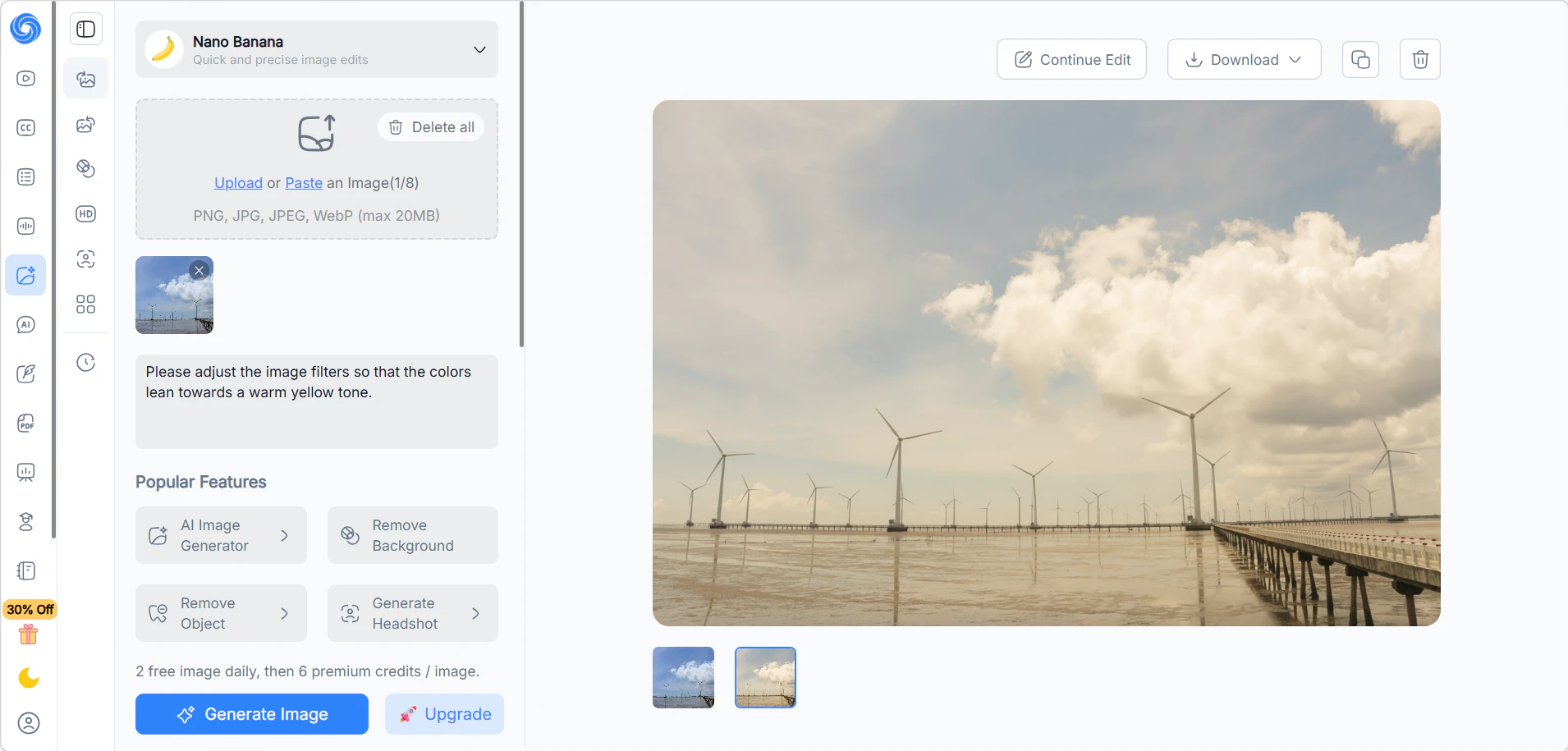
Go to NoteGPT → Upload photo → Select editing function (background removal, ID photo, avatar, upscale, etc.) → Generate → Download. No account needed for 2 daily free edits. Register free for 15 credits/month. For complex instructions, break them into shorter prompts due to the character limit.
✅ Test Result
Choosing the Right Tool: Matched to Your Actual Use Case
| Your Situation | Best Pick | Why |
|---|---|---|
| Free editing on PC browser, no sign-up | HeadshotMaster / NoteGPT | Anonymous access, no credit card, results in under 1 minute |
| Highest free-tier resolution on PC | PhotoEditorAI | 4K output when service is stable — only tool on this list with free 4K |
| Layer-based editing on PC browser | Pixlr | Closest feature set to a desktop editor; covers real editing needs beyond AI generation |
| Quick background cuts for social content | Canva | Consistent background removal that drops directly into existing Canva designs |
| Lowest monthly cost for regular PC use | DeepAI | ~$5/month entry; no subscription lock-in; no account needed to start |
| Multiple variant photos from one upload | NoteGPT | Batch generation with facial consistency built in — rare at this price point |
| Full feature range, light use only | Fotor | Widest tool coverage, but only practical when you are not relying on AI generation accuracy |
Common Questions About AI Photo Editors for PC
Do these tools require software installation on PC?
All seven tools in this comparison are fully browser-based — they run on PC through any standard browser with no download or installation required. HeadshotMaster, DeepAI, and NoteGPT also offer anonymous access, so you can start editing without creating an account. Chrome and Edge are the most consistently supported browsers across all seven tools; Firefox users have reported intermittent inconsistencies with Pixlr and Canva's AI features specifically.
Which tool gives the most free access before asking for an account?
HeadshotMaster gives anonymous users 3 attempts across three models with no account and no credit card. NoteGPT provides 2 free edits per day anonymously. DeepAI offers limited daily calls without sign-up. Of the three, HeadshotMaster provides the most model variety per session for a first-time PC user — three distinct models in a single anonymous session.
Is 4K output available without paying?
Yes — PhotoEditorAI offers up to 4K output for both anonymous and registered free users, which is the highest resolution ceiling in this comparison. The caveat is service reliability: the platform has a documented downtime pattern that makes 4K access inconsistent in practice. All other tools on this list cap free output at 720p.
Why did my edit fail but still use up credits?
This is a widespread issue across the category. DeepAI and Fotor both have documented cases where credits are deducted even when the generation fails or returns an unusable result, per Reddit r/photoediting user reports (March 2026). HeadshotMaster and NoteGPT do not have the same volume of failure-billing complaints in public user reports. If credits are limited, run a low-stakes test edit before committing credits to a complex task.
How do these tools handle the photos you upload?
Pixlr has a disclosed historical data breach on record per publicly reported information — users with privacy concerns should review their current data policy before uploading sensitive images. Fotor's credits handling has drawn complaints but no documented breach. HeadshotMaster, NoteGPT, and DeepAI have no high-risk flags from major security rating platforms. As a general practice, avoid uploading images containing identifiable documents or sensitive personal information to any cloud-based AI tool.
Which tool handles product photo backgrounds most reliably?
For straightforward background removal, Canva is the most consistent. For text-prompt-based product background replacement — for example, "put this product on a white marble surface" — PhotoEditorAI covers that use case when the service is operational. For users who need batch consistency across multiple product variants, NoteGPT's variant generation with consistency protection is the closest alternative at no cost.
Does it matter whether I use the PC browser version or the mobile app?
The tools on this list are browser-based and run identically on PC and mobile browsers. The practical PC advantage is workflow: editing on a larger screen allows side-by-side comparison of before/after outputs, easier file management between the browser and local folders, and more comfortable prompt typing for text-based tools like PhotoEditorAI and DeepAI. Tools like Pixlr also expose more of their layer-based features in the PC browser view than in their mobile app versions.
What to Check Before You Upload: Credits, Privacy, and Reliability Risks
- Credits that expire: Fotor's free credits have an expiration date. Unused credits do not carry over — the nominal "8 free credits" may not be available when you return to the tool.
- Failed-generation billing: Both DeepAI and Fotor have documented cases of credits being consumed by generations that return nothing usable (per Reddit r/photoediting, March 2026). Run a test edit before committing credits to a complex task.
- Paid tier downgrades: PhotoEditorAI's most consistent user complaint is that the paid experience is worse than the free tier. Verify current user feedback before upgrading any tool on this list.
- Resolution ceilings: Six of the seven tools cap free output at 720p. If you need print-ready resolution, only PhotoEditorAI (4K, when available) meets that threshold without a paid plan.
- No third-party reviews for HeadshotMaster: HeadshotMaster has no Trustpilot or G2 profile, which limits independent verification. This is not a red flag on its own, but means user feedback is harder to aggregate than for longer-established tools.
- Prompt character limits: The NoteGPT prompt field has a character limit. For complex edits, use multiple shorter instructions instead of one long prompt.
- Browser compatibility: All seven tools are designed for PC via Chrome and Edge. Some AI features in Pixlr and Canva have reported inconsistencies on Firefox. If results differ from what's documented, browser choice may be a variable worth testing.
- Data retention: Pixlr has a disclosed historical data breach. Before uploading professional or sensitive photos to any tool on this list, check the current privacy policy for data retention and deletion terms.
Which Tool Fits Your Editing Scenario
If you need a completely free AI photo editor for PC with no login and no learning curve, HeadshotMaster is built for that scenario — three models available immediately in your browser, results in roughly one minute, no account or credit card required. If your need is daily recurring free access without any sign-up, NoteGPT's two-use daily limit covers occasional tasks at zero cost. If layer-based editing matters more than AI generation, Pixlr's feature set is the closest to a desktop editor in this group. And if budget is the priority and you can tolerate multiple generation attempts, DeepAI at approximately $5 per month is the lowest paid-tier entry point on this list.
None of these tools delivers consistently accurate AI editing across complex scenes — that reflects where the underlying technology sits across the category right now. What they do offer is free, browser-based access on PC that removes the barrier to trying before committing.